Mapping
Mapping is at the core of UXSheets' functionality. In order to retrieve data from ServiceNow and write data back to ServiceNow, The data must be mapped to the cells in a spreadsheet. To achieve this UXSheets has two types of mappings available, Individual Cells and Table Mappings.
Individual Cells
- To map a field from the current record to an individual cell right-click on it and select Create Record Mapping.
- Mapping Type a mapped cell can either be Bidirectional or To Record Only.
- Bidirectional causes the changes made in the cell to update the record in ServiceNow and when the record in ServiceNow is updated the cell will change.
- To Record Only sends changes to the record in ServiceNow but does not update the cell when changes are made to the record in ServiceNow. This type of mapping is ideal for storing the results of a Formula.
- Fields with arrows point to records that can be dot walked into. Clicking then will show the fields contained in that record. Note these dot walked fields will appear as read-only and will not run during template design if no test record is selected.
- After creating a Record Mapping, right-click on it to edit the record and Mapping Type.
UXSheets analyzes the titles around the cell you are mapping to predict what record you may be choosing to save you the time of searching for that record.
This type of mapping is not available in stand-alone spreadsheets as there is no current record to map.
Table Mappings
Creating a Table Mappings
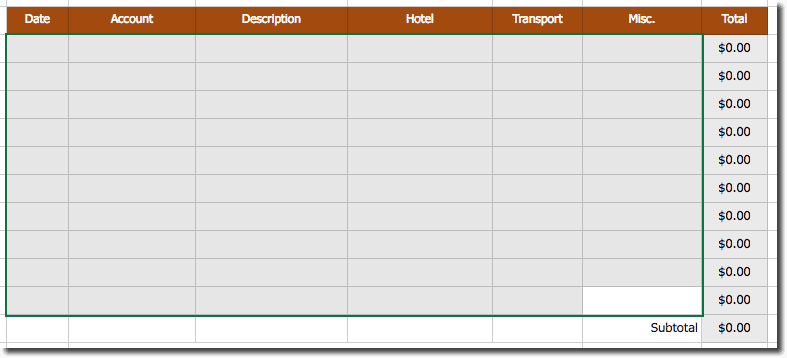
- First, highlight the area the table will occupy.
- Then, in the Designer section of the toolbar select Map Table.
- By default tables are mapped row-wise. This means each row is a record and each column is a field on that record. However, by checking the Column Table option this orientation can be reversed such that every column is a record and each row is a field on that record.
- Select the list related to your table or you can use a Custom Query.
- Use Custom Query allows the user to select the ServiceNow Table/Database View that the information is coming from. Then specify a custom query to pick specific data.
- Database Views are indicated by a
+followed by the label of the Database View.
- UXSheets analyzes the headers of the table to attempt to identify what fields each row of the table will use.

- The fields can also be selected manually from the menus.
- Fields with arrows point to records that can be dot walked into. Clicking them will show the fields contained in that record. Note these dot walked fields will appear as read only.
- If the related list selected was related through a many to many table then fields prepended with '*' exist on the many to many table.
- By default the uniqueness of a record is determined by it's sys_id. However Keys can be selected that will be used instead.
- Each key must be a column that is mapped in the table.
- If duplicate keys are found UXsheets can fail to insert of update the existing record by selecting the Update Existing Record on Match option.
- This feature is recommended for use with pasting in large import sets.
- This feature is not available when mapping a table through a many to many relationship
- If you are using a custom query there will be a place to enter a query string below the mapping menus (more information on custom queries below)
- The content shown in the table can be sorted using Sort By to select a field to sort by. Additionally if Sort in Descending Order is checked then the contest will be shown in the opposite order.
- By checking the Group option and selecting a field for Group By items in the table will be organized into groups. Each group will be drawn with a header. Groups are sorted by default and the order can be reversed by checking the Sort Groups in Descending Order option.
- If the Limit Query option is selected it limits the results of the query to the number specified.
- There are a number of Query Options to choose from
- Expand Table as Needed will add additional rows to the highlighted area if there are more records retrieved than rows selected. If this option is selected it will only add rows in data mode and not during template designing.
- Allow Delete of Records will allow the mapped table to have the ability to delete the record in ServiceNow that is mapped to it.
- Allow Inserting of New Records will allow the table to insert new records into ServiceNow.
- Allow Adding of New Rows to End of Table will allow new rows to be inserted at the end of the table. This option will only be available if the Allow Inserting of New Records option is selected.
- Allow Deleting of Columns will allow columns of this table to be deleted by the end user.
- Allow Deleting of Rows will allow rows of this table to be deleted by the end user.
- Click Map once finished to create the Table Mapping.
Custom Queries
UXSheets uses ServiceNow's standard syntax for filters and queries. For more information on the syntax and available operators see ServiceNow's documentation.
Custom queries can also be set up as templates to include values from the current record or values from cells in the spreadsheet. This allows queries to change based on values in the current record or on the spreadsheet.
- Using a string of the form
{{name}}in a query where name is the name of any field on the current record will substitute the value of that field for the string{{name}}in the query. - Dot walking from the current record can be accomplished by providing a dot walk path such as
{{employee.department}}. - By default if the field provided is a reference then the display value of the referenced record is used for substitution.
- Using a string of the form
{{=Sheet!Cell}}where Sheet specifies a sheet and Cell specifies a cell on that sheet. The value in that cell will substituted in the query string. - Optionally the Sheet can be omitted using the form
{{=Cell}}to use the current sheet. - Note cells containing formulas should not be used in query templates
Query templates are not run during template design if there is no test record selected. Testing Query templates by selecting a test record is highly recommended to insure its accuracy.
Editing Table Mappings
Right clicking on the mapped table will popup a menu that will give the option to Edit Table Mapping or Remove Table Mapping. Editing a table mapping will allow you to change the field mappings, table options, and custom query. If you wish to change between using a custom query or not you must remove the mapping and create a new one. The menu that appears after right clicking a table mapping will also allow you to Insert Row, Delete Row, Insert Column, and Delete Column which will all change the dimensions of the mapping.
Notes on Mapped fields
Reference Field Behavior
Reference fields will appears as dropdown lists containing the options that that field can be set to. However, If the number of options becomes large the drop down will become a suggestion list and no options will be available until the user begins to type. This is to reduce the load time involved with retrieving the options. The threshold where this switch happens is 100 items by default but can be configured in Sheet Options.
Reference Qualifiers
UXsheets supports all simple reference qualifiers and some advanced reference qualifiers. Advanced referance qualifiers that do not use javascript are supported as well
as ones that use javascript that only references current. For example, javascript:"company=" + current.company will be honored in UXsheets. However, UXsheets will not honor
reference qualifiers that use script include or ServiceNow functions. This is because the javascript must be run on the client
and UXsheets will not have access to these functions.